Claude is one of the most capable AI assistants available today — but if you have ever started a new session and realized it has no idea what you discussed yesterday, you are not alone. Many users struggle with how to referencing another chat in Claude, wondering whether their conversation history is saved and whether Claude can pick up where things left off.
In this guide, you will learn exactly how Claude handles chat history, what the Projects feature does for memory, how to share and search past conversations, and practical workarounds to keep context alive across multiple sessions. Whether you are a casual user or a power user building workflows, this article covers everything you need.
Claude does not retain memory between separate chat sessions by default. To reference another chat in Claude, users must manually copy relevant context into the new conversation, use Claude’s Projects feature to create a persistent workspace, or enable memory settings if available on their plan. Claude Projects allow you to add past conversations and files so Claude remembers your background across sessions.
1. Does Claude Remember Previous Conversations?
This is the most common question users ask, and the short answer is: not by default.
Claude operates within a context window — the active session memory that exists only while your current chat is open. Once you close a chat or open a new one, Claude starts fresh. It does not carry forward anything from earlier sessions unless you explicitly bring that information into the new conversation.
This is fundamentally different from how some users expect AI assistants to work. ChatGPT introduced a persistent memory feature that stores facts about users across sessions. Claude is catching up with its own memory and Projects system, but the behavior is not identical.
Why Claude Resets Between Sessions
This design prioritizes privacy. Claude does not build a persistent profile of you unless you opt in. Each conversation is isolated, which means your past discussions are not automatically accessible in a new chat. For most users, this is a feature — not a bug — but it does require a different workflow when you want continuity.
2. How to Reference Another Chat in Claude: 4 Methods That Work
There are four reliable ways to reference a past conversation in Claude. Each has its own use case depending on how much context you need to carry forward.
Method 1: Copy and Paste Context Manually
The simplest approach. Open your previous chat, highlight the relevant parts of the conversation, copy them, and paste them at the start of your new session. You can tell Claude explicitly:
“Here is context from a previous conversation we had. Please continue from here: [paste content]”
This works immediately and requires no special settings. It is the go-to method for one-off reference needs.
Method 2: Use Claude Projects for Persistent Memory
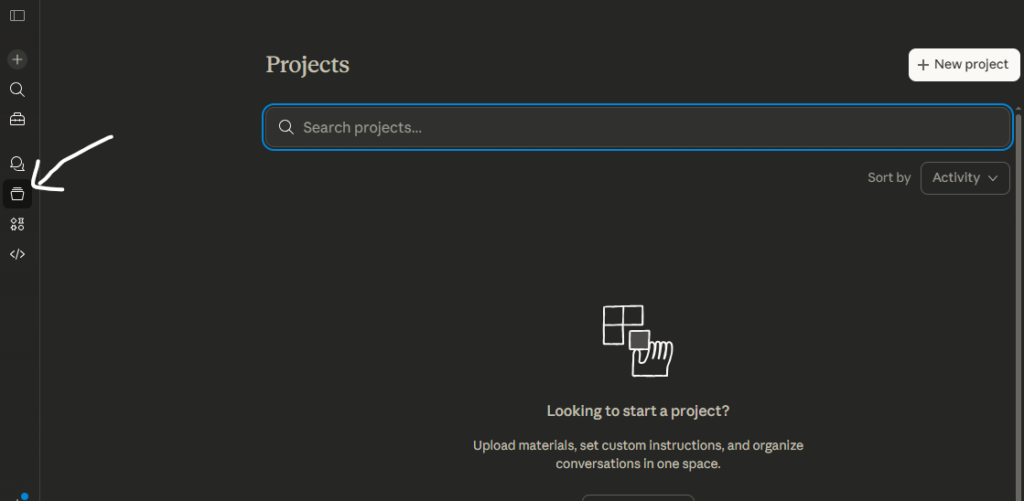
Claude Projects is the most powerful way to reference past chats on an ongoing basis. Projects create a shared workspace where Claude remembers your background, preferences, files, and instructions across multiple conversations.
To add a chat to a project:
- Navigate to Claude.ai and click Projects in the left sidebar.
- Create a new project or open an existing one.
- Inside the project, start a conversation. All chats within this project share the same context.
- Upload files, add instructions, or paste summaries of previous conversations into the project knowledge base.
Claude will now reference that information automatically across every conversation you have inside that project. This is the closest Claude gets to true cross-session memory.
Method 3: Enable Claude’s Memory Feature
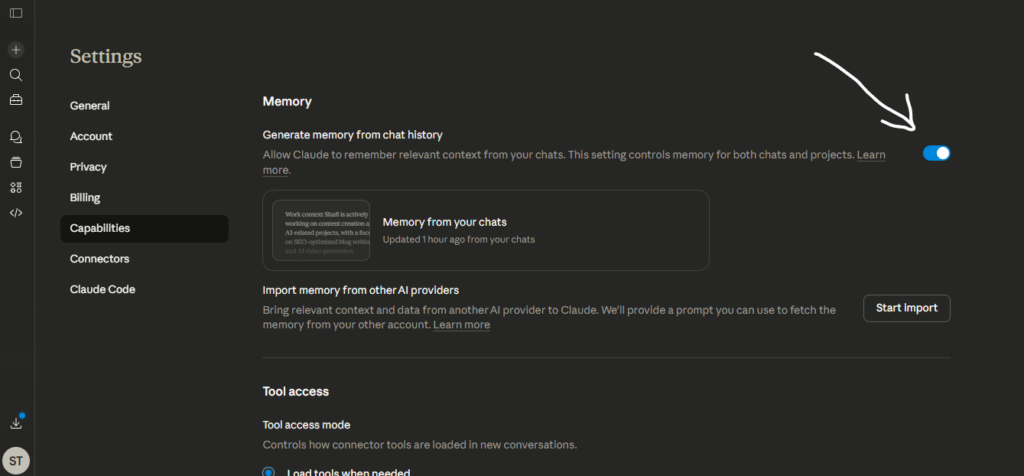
Anthropic introduced a memory feature that allows Claude to generate and store key facts from your conversations. When enabled, Claude can recall your name, preferences, job role, and other details in future sessions.
To check if this is available on your account:
- Go to Claude.ai and click your profile icon.
- Navigate to Settings.
- Look for Memory under the features section.
- Toggle it on. Claude will begin building memories from your conversations automatically.
You can view, edit, or delete stored memories at any time. This gives you full control over what Claude retains. You can also take help form this claude post “Switch to Claude without starting over“.
Method 4: Export and Re-Import Chat Summaries
For longer projects or research threads, consider summarizing a past conversation and saving it as a reference document. Ask Claude to summarize the key takeaways at the end of each session, then paste that summary at the start of the next one. Over time, this creates a lightweight knowledge base that keeps Claude aligned with your ongoing work.
3. How to Access Claude Chat History
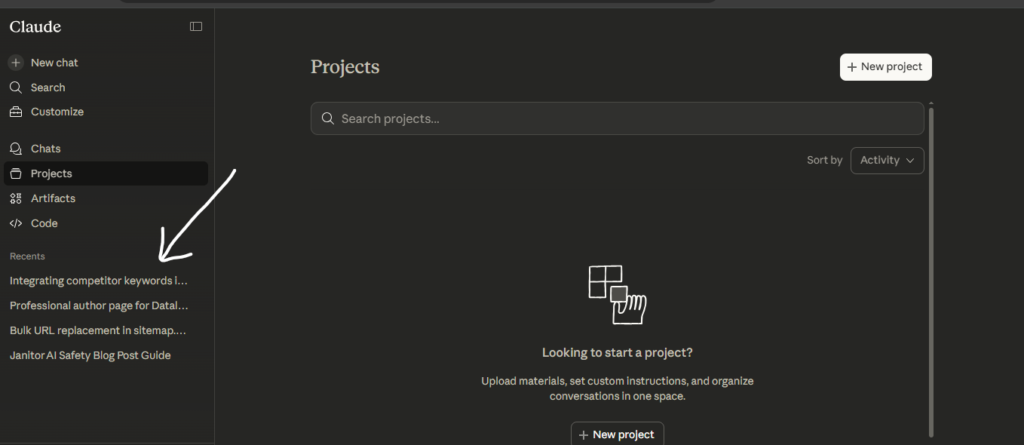
Claude saves your conversation history within the platform so you can return to past chats. Here is how to find and use it:
- On Claude.ai, your past conversations appear in the left sidebar under Recent Chats.
- Click any past conversation to reopen it and continue where you left off within the same thread.
- Use the Claude chat search feature to find specific conversations by keyword or topic.
- Claude does not currently offer a native export button on all plans, but you can select all text in a conversation and copy it for external storage.
Note that chat history is tied to your account. If you switch devices, your conversations are still accessible as long as you are logged into the same Claude.ai account.
4. How to Share Claude Conversations
Sharing a Claude chat is straightforward and useful for collaboration, feedback, or documentation purposes.
Sharing via Link
- Open the conversation you want to share.
- Click the share icon in the top-right corner of the chat.
- Choose whether to share as a public link or restrict access.
- Copy the link and send it to collaborators.
Anyone with the link can view the conversation. This is especially useful if you want to share a Claude code history thread or a research conversation with teammates.
Sharing for Reference Within Claude
If you want to share context between your own Claude sessions, paste the shared link or conversation content directly into a new chat. Claude can read and process pasted conversation text, allowing you to effectively reference another chat in Claude without needing a formal memory system.
5. Claude vs. ChatGPT Memory: Key Differences
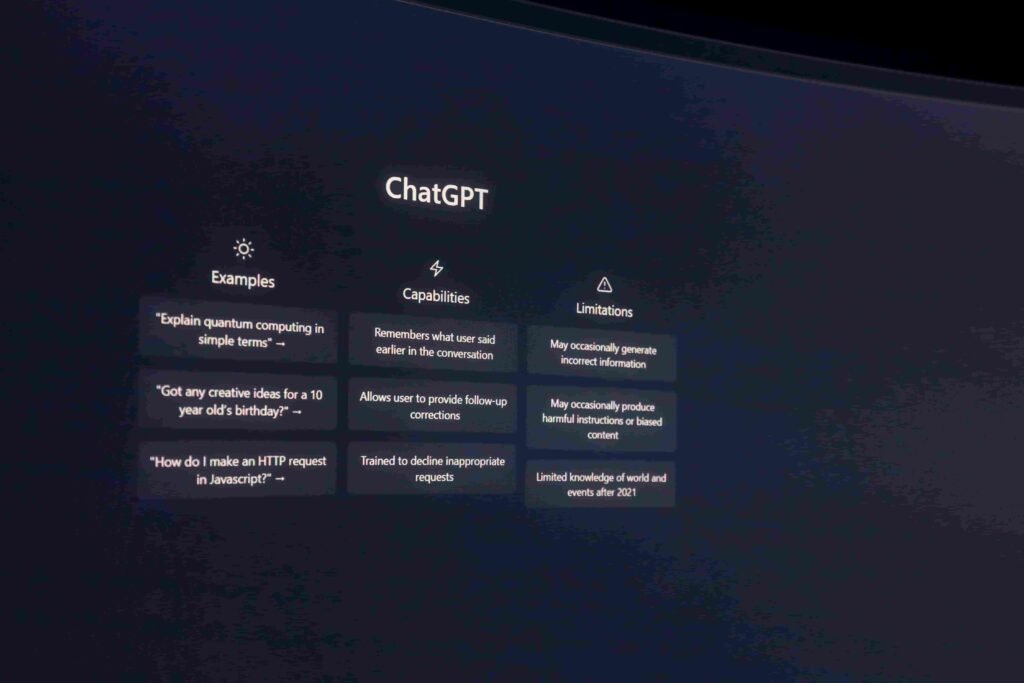
Many users ask: does Claude have memory like ChatGPT? The answer is yes — but the implementation differs.
Claude’s approach leans more conservative and privacy-focused by default. ChatGPT’s memory has been available to a wider user base for longer. However, Claude’s Projects system is arguably more structured for power users who want deliberate, organized context management.
Both platforms now support persistent memory, chat history search, manual context input, and conversation sharing. The main difference is that Claude requires users to opt in, while ChatGPT enables memory more broadly by default.
6. Claude Code History: A Special Case
Developers using Claude for coding workflows often need to reference Claude code history — previous coding sessions, code iterations, or debugging threads. The same principles apply, but here are a few extra tips:
- Paste code snippets and previous debugging context directly into new coding sessions.
- Use Claude Projects to maintain a running codebase reference, including architecture decisions, file structures, and error logs.
- Ask Claude to produce a structured summary at the end of each coding session. Paste that summary into subsequent sessions to maintain continuity.
- For API users, pass previous conversation messages programmatically in your API calls to maintain context across sessions.
7. Practical Tips for Better Context Management
Getting the most out of Claude’s memory features requires a little structure. Here are expert-level habits that help:
- Start long projects inside a Claude Project, not in free-standing chats. This ensures all related conversations share context automatically.
- Create a Project Brief document and upload it to your Claude Project. Include your goals, preferences, and key background information.
- At the end of important sessions, ask Claude: “Summarize the key decisions and context from this conversation in 150 words.” Save that summary for future reference.
- Use the Claude chat search feature to quickly locate past threads instead of scrolling through history.
- Review your Memory settings periodically. Remove outdated memories and confirm Claude is storing the right information.
- For teams, share project links to ensure everyone is working from the same context. Claude Projects support collaborative workflows natively.
8. Common Mistakes to Avoid
Even experienced users make these missteps when trying to reference past Claude chats:
- Assuming Claude remembers automatically: It does not — unless you have Projects or Memory enabled. Always verify your setup.
- Pasting entire long conversations verbatim: This wastes your context window. Summarize instead and paste only the most relevant parts.
- Not using Projects for ongoing work: Free-standing chats are fine for one-off tasks. But for any multi-session project, Claude Projects dramatically improve continuity.
- Forgetting to enable Memory: Many users overlook the Memory toggle in settings. Check once — it makes a significant difference.
- Relying on chat history for context: Chat history lets you read past conversations, but Claude itself cannot access them in a new session unless you bring the content in manually.
Conclusion: Take Control of Your Claude Conversations
Understanding how to referencing another chat in Claude puts you in control of your Artificial Intelligence workflow. Claude does not remember previous conversations by default, but between the Projects feature, the Memory toggle, manual context pasting, and smart summarization habits, you have everything you need to maintain continuity across sessions.
The key takeaway: build a system, not a habit of hoping Claude remembers. Use Projects for ongoing work, enable Memory for personal context, and always summarize before closing an important conversation.
Explore more Claude productivity guides on Datalevo to deepen your AI workflow and get more out of every session.
Frequently Asked Questions
How do I reference another chat in Claude?
Copy the relevant content from a past chat and paste it into your new conversation. For ongoing projects, use Claude Projects to create a shared workspace where context is preserved automatically across sessions.
Does Claude AI remember previous conversations?
No — Claude does not retain memory between separate sessions by default. You need to enable the Memory feature in settings or use Claude Projects to maintain context across conversations.
Can Claude reference other chats automatically?
Not without setup. Within a Claude Project, conversations share context automatically. Outside of Projects, you must manually bring past conversation content into a new chat.
How do I access Claude chat history?
Your past chats appear in the left sidebar on Claude.ai. Click any conversation to reopen it. Use the Claude chat search feature to find specific threads by keyword.
Does Claude have memory like ChatGPT?
Yes — Claude offers a Memory feature and Projects system similar to ChatGPT’s memory. Claude’s approach is more privacy-focused by default, requiring users to opt in rather than enabling memory automatically.
How do I share a Claude conversation?
Open the conversation, click the share icon in the top-right corner, and generate a shareable link. You can share this link with collaborators or use it to reference the chat in other contexts.
Can I add a past Claude chat to a project?
Yes. Open your Claude Project and paste past conversation content or upload files into the project knowledge base. Claude will reference this material across all future conversations in that project.